
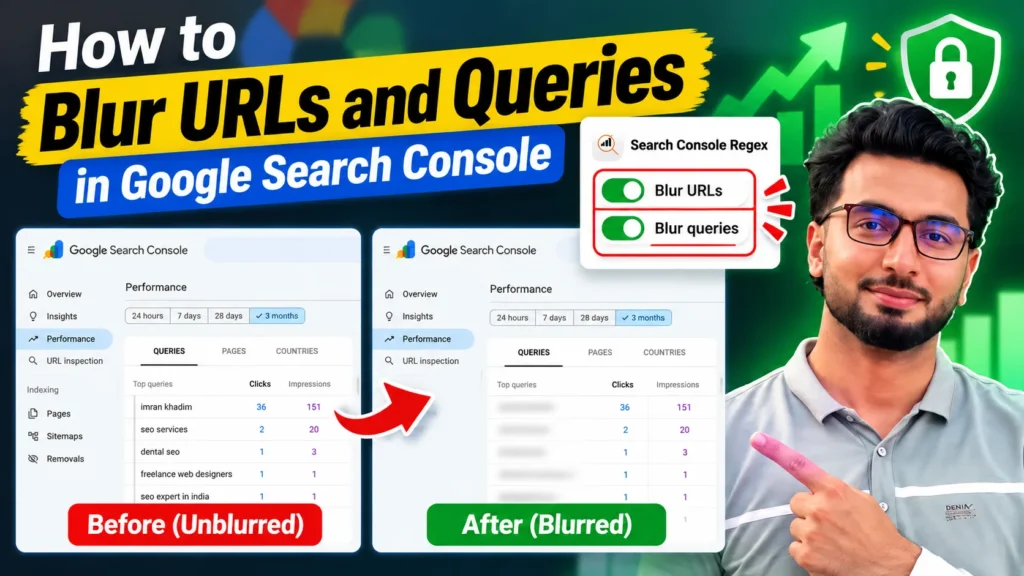
If you record SEO videos, teach a course, send screenshots to a client, or share your screen on a call, you have had this problem. The Performance report is the proof of your work, and it is also a list of the exact queries and pages you may have no right or no wish to show. Blurring in a video editor after recording costs time, and one missed frame gives the data away anyway.
This guide shows how to blur URLs and blur queries in Google Search Console before you record, using the blur mode inside the free Search Console Regex extension. It also lists, plainly, what blur cannot hide, because a privacy step you over trust is worse than none.
Why Search Console data leaks so easily
A single Performance report screenshot can show:
- The exact search queries a client ranks for, including the weak ones.
- Landing page URLs from a staging area, a pricing test, or a section of the site that is not public yet.
- Brand terms and product names a business has not announced.
- In agency work, one client seeing another client name in the property switcher or in a shared recording.
None of this needs a hack. It needs one screenshot sent to the wrong chat, or one tutorial uploaded with a readable query table. Teachers, freelancers and agencies hit this far more often than site owners do, because showing Search Console is part of their weekly work.
What blur mode in Search Console Regex actually does
Blur mode is two separate toggles in the extension:
- Blur URLs: hides page URLs and links shown on the Search Console page.
- Blur queries: hides the query text in the Performance report tables.
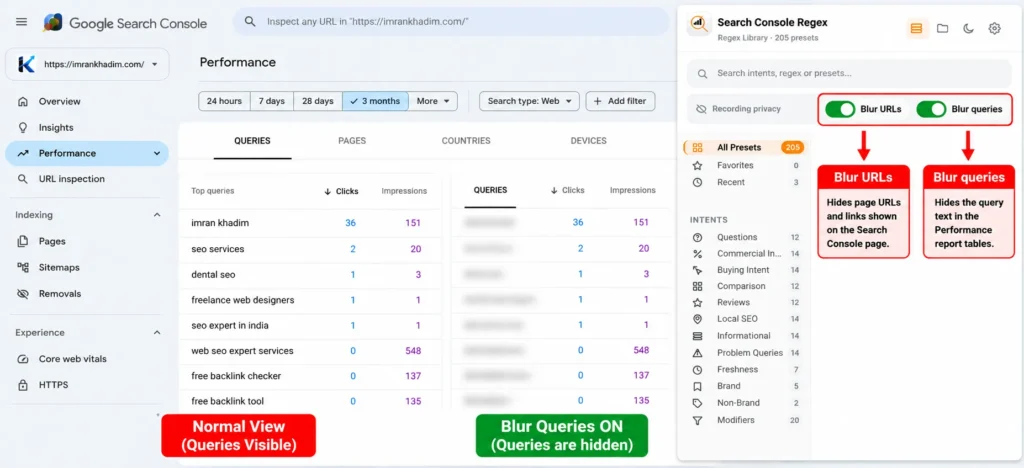
Separate toggles matter. In a client call you may want queries hidden but page paths visible, because the client already knows their own URLs and the discussion is about pages. In a public tutorial the reverse is common: show the query shapes you analyse, keep the client site URLs out of frame. Generic screen blur tools blur whatever element you click, one at a time. Blur mode knows the report layout and covers the rows as a group, including rows that load as you scroll.
The blur is a visual layer inside your browser tab. It does not edit your Search Console data, it does not touch the property, and nothing is uploaded anywhere. Settings sit in local browser storage like the rest of the extension.
How to blur queries in Search Console, step by step
Step 1: Install the extension
Add Search Console Regex from the Chrome Web Store: https://chromewebstore.google.com/detail/search-console-regex/gkhbacegfheohpekmjabdoacdjklkedn
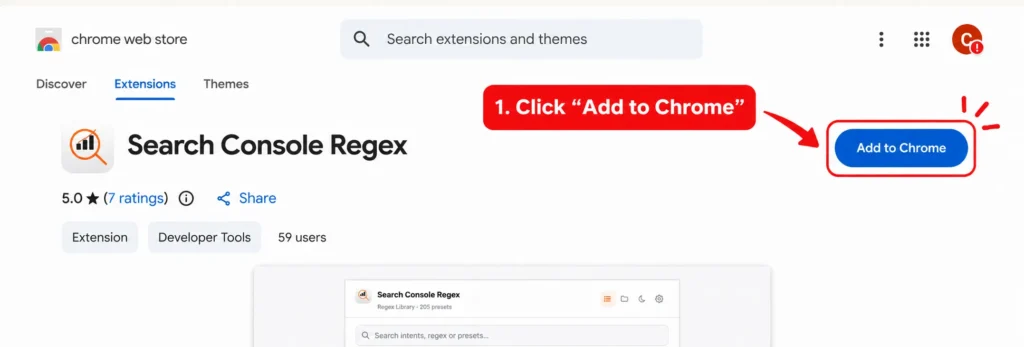
Free, no account, no sign in.
Step 2: Open the report you plan to show
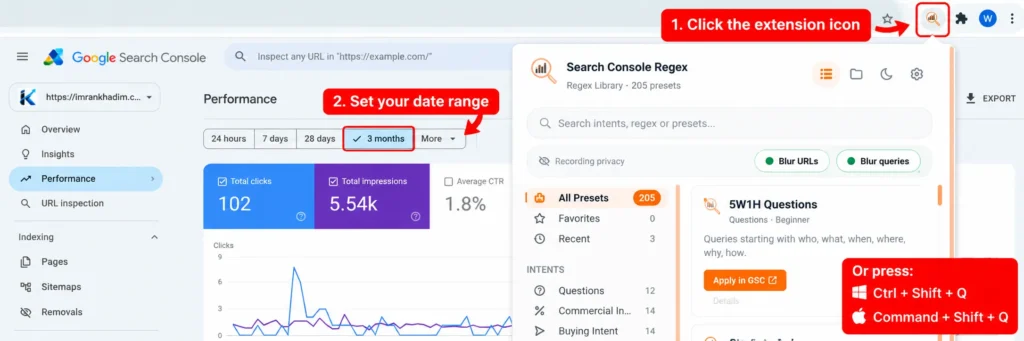
Go to Performance, then Search results, and set your filters and date range while everything is still visible. If you filter with patterns, my Search Console regex guide has copy ready examples. Set the view up first, blur second. It is much harder to check you opened the right view once the text is hidden.
Step 3: Turn on Blur queries
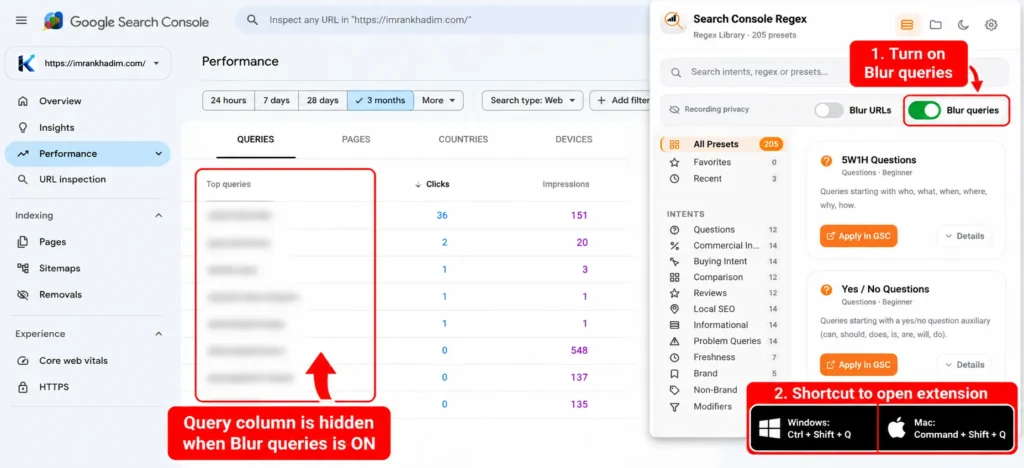
Open the extension and switch on Blur queries. The query column in the report is hidden at once. Press the shortcut to open the extension fast: Ctrl+Shift+Q on Windows, Command+Shift+Q on a Mac.
Step 4: Check the whole table, not just the first rows
Scroll the full table. Scroll the Pages tab as well if you will open it on the call. Blur follows the rows as they load, and a ten second scroll now is cheaper than a query appearing live in front of a client.
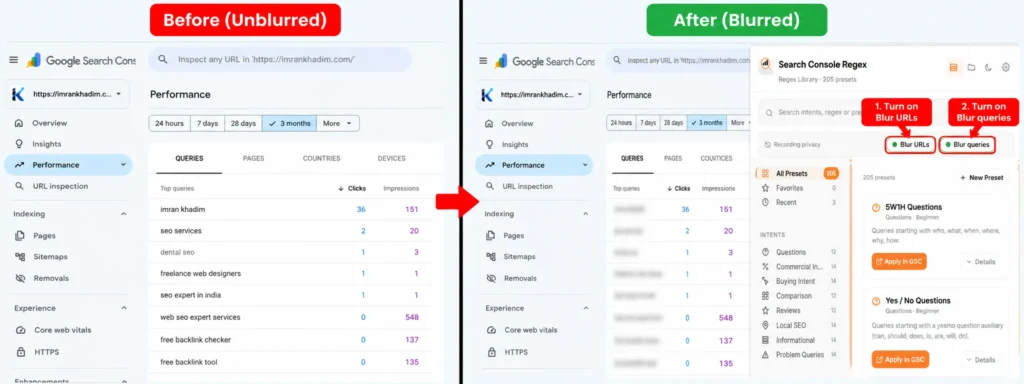
[SCREENSHOT: Performance report with Blur queries on, query column hidden, clicks and impressions visible. Alt text: Search Console Performance report with queries blurred and metrics still readable.]
How to blur URLs in Search Console, step by step
Step 1: Keep the same report open
Blur URLs works on the same Performance report, and on the links Search Console shows across its pages.
Step 2: Turn on Blur URLs
Switch on Blur URLs in the extension. Page URLs and on page links are hidden. The shortcut toggles URL blur directly: Ctrl+Shift+B on Windows, Command+Shift+B on a Mac.
Step 3: Check the Pages tab and the page filter
Open the Pages tab and open the page filter dropdown once before you record. These are the two places URLs appear in a second view that presenters forget.
Step 4: Turn blur off when the call ends
Toggle both switches off and the report returns to normal. Nothing was saved into the data, so there is nothing to undo inside Search Console.
Blur before recording: a 60 second checklist
Run this before any tutorial, course lesson, screenshot or client screen share.
- Filters, date range and property set while text is still visible.
- Blur queries on, if the audience should not see query text.
- Blur URLs on, if the audience should not see page paths.
- Table scrolled from top to bottom once.
- Pages tab and page filter checked once.
- Chart hovered once, to remind yourself tooltips are not blurred (see limits below).
- Browser address bar looked at. It shows the property URL and blur does not cover it. Crop it, zoom the page, or use a separate browser profile for recordings.
- Notifications closed and other tabs hidden, because blur only covers Search Console.
What blur mode does not cover
Read this part before you rely on blur in front of a client or a public audience.
- Chart tooltips. Hovering over the Performance chart can show values in a tooltip that sits outside the blurred areas. Keep the cursor off the chart while recording, or record the table view.
- Exported files. A CSV, Google Sheets or Excel export contains the real queries and URLs. Blur never reaches a downloaded file. Do not export during a recorded session. The same care applies when you upload exports to AI tools, as covered in my guide to ChatGPT for SEO.
- The browser address bar. The property identifier sits in the URL itself. Handle it with cropping or a clean profile.
- Anything shared before blur was turned on. A screenshot taken a minute earlier is not fixed by turning blur on now.
- Other Google tools. Blur mode runs on Search Console pages only. Analytics, Ads and Looker Studio need their own check.
Blur in the extension vs blurring in a video editor vs generic blur tools
| Route | When it hides data | Weak point |
|---|---|---|
| Video editor blur after recording | After the fact, frame work by frame work | One missed frame in an export leaks the row, and re editing costs hours |
| Generic screen blur extension | Live, element by element | You click each element by hand, and new rows loaded on scroll start out visible |
| Search Console Regex blur mode | Live, before you record | Covers Search Console only, and tooltips plus exports stay outside it |
For an SEO tutorial channel or a weekly client call, the live route wins on time alone. A 20 minute recording with the query table blurred by hand in an editor can take longer to clean than it took to record.
Who needs Search Console blur most
- Course creators and YouTubers recording Performance report lessons.
- Freelancers sending proof of work without exposing one client to another.
- Agencies running screen share reporting calls on client properties.
- In house SEOs sharing screenshots in public case studies, conference decks and job portfolios.
- Anyone preparing screenshots for a blog post, like this one. Every Search Console screenshot in our own guides is blurred with this same toggle before it is published.
Questions about blurring Search Console data
Does blurring change or delete my Search Console data?
No. Blur is a display layer in your tab. Turn it off and every query and URL is right where it was.
Can someone remove the blur from my screenshot later?
A screenshot of a blurred table is a flat image. There is no hidden layer in the exported picture for a viewer to peel back. Still, keep the blur strong enough that letter shapes cannot be guessed, and never publish the unblurred original beside it.
Does blur mode work on the Pages tab as well as Queries?
Yes for URLs. Blur URLs covers the URLs listed in the Pages tab, and Blur queries covers the query text in the Queries tab. Check both tabs once before recording, as the checklist above says.
Does the extension send my queries anywhere while blur is on?
No. The extension collects nothing, runs no analytics, and stores its settings locally in your browser. Blur reads the page only to hide text visually inside that tab.
What is the shortcut to toggle URL blur?
Ctrl+Shift+B on Windows and Command+Shift+B on a Mac.
Start blurring before your next recording
Install Search Console Regex from the Chrome Web Store: https://chromewebstore.google.com/detail/search-console-regex/gkhbacegfheohpekmjabdoacdjklkedn
Then read the full filter guide: how to use regex in Google Search Console. Product page and privacy policy: Search Console Regex extension.