
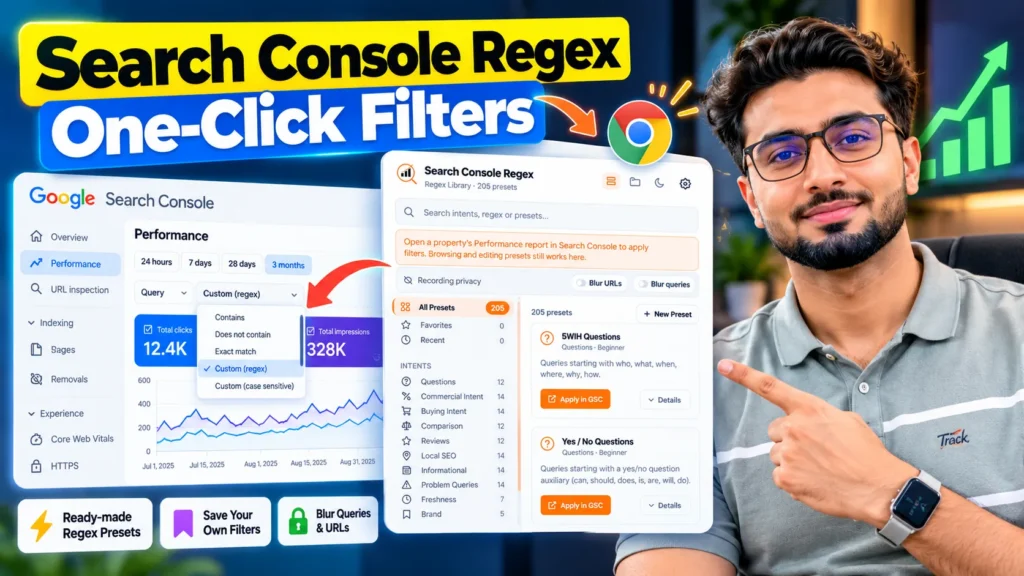
Search Console regex is the Custom (regex) filter inside the Performance report of Google Search Console. It lets you filter queries and page URLs with a pattern instead of a single exact word. Used well, it answers questions the normal filters cannot, such as which question queries send you impressions, or how much traffic is branded and how much is not.
The filter itself is not the problem. The work around it is. Every session starts the same way: open the filter, pick Custom (regex) from the dropdown, type the pattern from memory or from a notes file, fix a typo, apply, then do it all again for the next pattern. This guide covers the regex rules first, then the copy ready patterns people search for, then a faster way to run the same filters with a free Chrome extension called Search Console Regex.
What is regex in Google Search Console?
Regex is short for regular expression. It is a pattern language for matching text. In the Performance report you can apply it to two dimensions:
- Query: the words people typed into Google.
- Page: the URL that was shown or clicked.
Pick a dimension, choose Custom (regex), then choose Matches regex to keep only the rows that fit the pattern, or Doesn’t match regex to remove them.
The five regex rules Search Console follows
Most failed filters come from these five rules, not from the pattern itself.
It runs on RE2 syntax
Search Console uses the RE2 engine. Patterns written for other tools often use lookahead, lookbehind or backreferences. RE2 does not support them, so those patterns return an error or the wrong rows. Every pattern in this guide is RE2 safe. AI chat tools often suggest lookaheads anyway, which is one of the failure points covered in my guide to ChatGPT for SEO.
It is a partial match
The pattern matches anywhere inside the query or URL. The pattern shoes also matches “running shoes for women”. Add ^ to anchor the match to the start of the text and $ to anchor it to the end.
It is case sensitive by default
Queries in Search Console are normalised to lower case, so this rarely hurts query filters. Page URLs keep their case. Add (?i) at the start of a page pattern when you need both cases.
It has a 4,096 character limit
One filter holds up to 4,096 characters. Long brand lists and long keyword lists hit this limit fast. Split them across two filters or two saved presets.
Matches and Doesn’t match change the totals
A filtered view recalculates clicks and impressions for the rows shown. Anonymised queries are handled differently under a filter, so a filtered total will not always add up to the unfiltered chart. That is normal Search Console behaviour, not a broken pattern.
Google Search Console regex examples you can copy
These are the patterns readers ask for most, grouped by the job they do. Paste any of them into the Custom (regex) filter, or save them once in the extension and apply them with a click from then on.
Question queries
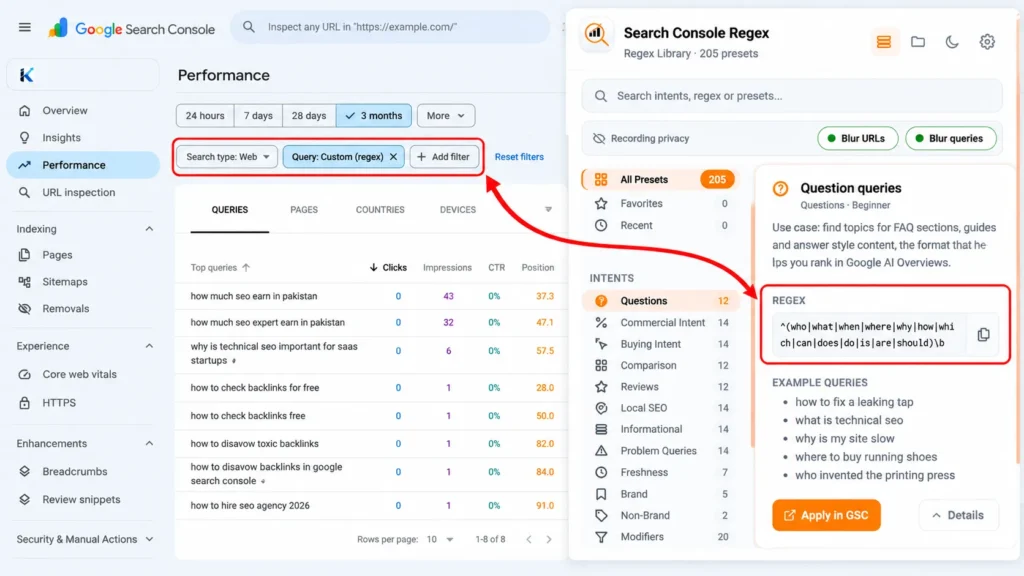
Use case: find topics for FAQ sections, guides and answer style content, the format that helps you rank in Google AI Overviews.
^(who|what|when|where|why|how|which|can|does|do|is|are|should)\b
For how to queries only:
\bhow to\b
For definition queries only:
\bwhat (is|are)\b
Long tail queries
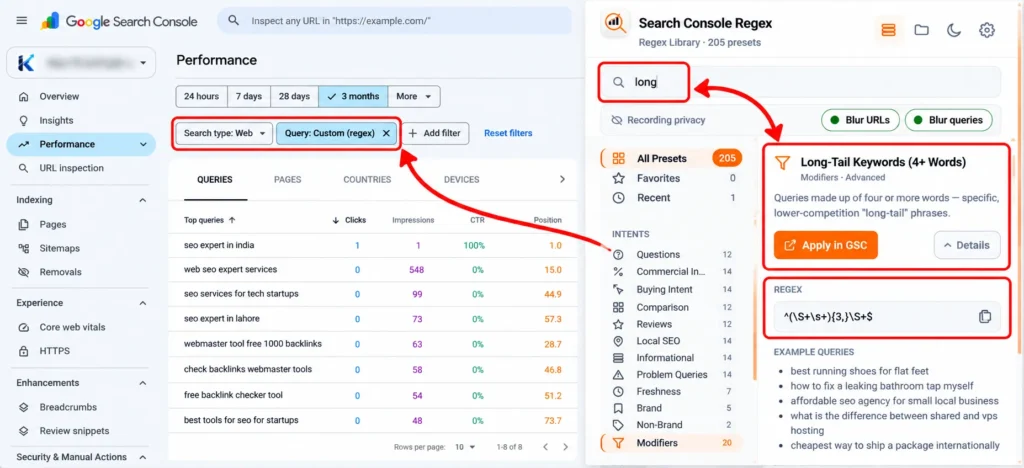
Use case: specific queries with clear intent and usually weaker competition. This pattern keeps queries of six words or more.
^(\S+\s+){5,}\S+$
Branded and non branded queries
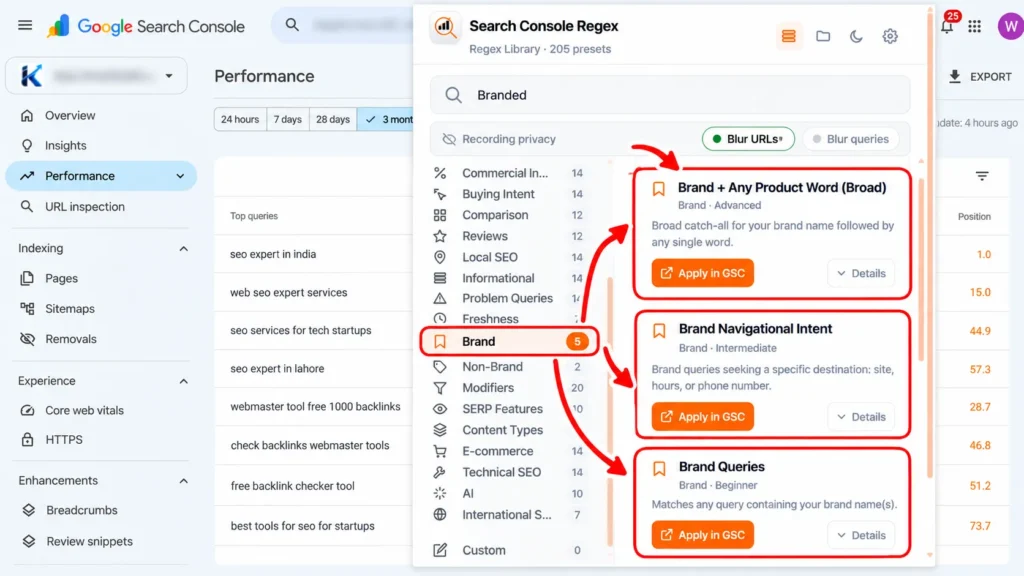
Use case: split performance between people who already know the brand and people who found the site cold. Replace the example brand with yours, and include common misspellings.
Matches regex, branded:
yourbrand|your brand|yourbrandd
Run the same pattern with Doesn’t match regex and you get the non branded view.
Comparison and buying intent queries
Use case: find the queries closest to a purchase or a shortlist decision. The pages these queries land on are the first candidates for content optimization.
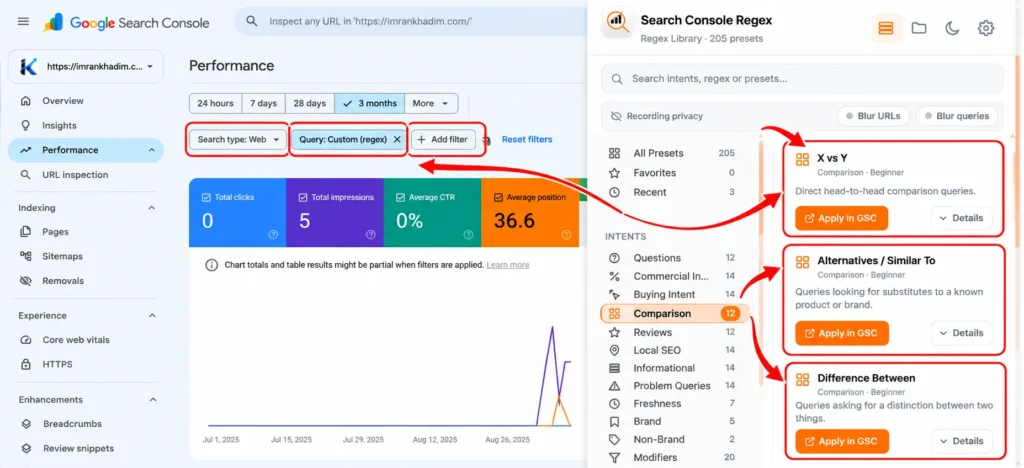
Comparison:
\b(vs|versus|compared?|comparison|alternatives?)\b
Buying intent:
\b(best|top|review|reviews|price|pricing|cost|cheap|buy)\b
Page URL patterns
Use case: report on one part of a site at a time. Switch the filter dimension from Query to Page.
Blog pages only:
/blog/
URLs carrying tracking parameters:
[?&](utm_|gclid|fbclid)
If these URLs show impressions, Google is indexing parameter versions of your pages, one of the common technical SEO issues that splits ranking signals.
PDF and document files:
\.(pdf|docx?|xlsx?)($|\?)
The slow part of Search Console regex, and how the extension removes it
Open the filter. Pick Custom (regex). Type the pattern. That is 20 to 30 seconds per filter when the pattern is short, and minutes when it is long or stored in another app. An agency checking six patterns on five client properties repeats that work 30 times.
Search Console Regex is a free Chrome extension built for that one job. It lives next to the Performance report and applies the filter for you.
[SCREENSHOT: Extension popup open over the Performance report, preset categories visible. Alt text: Search Console Regex extension popup with preset categories inside Google Search Console. Source: webstore shot-2 popup 1280×800.]
What the extension gives you
Ready made presets in 18 categories
Questions, Commercial Intent, Buying Intent, Comparison, Reviews, Local SEO, Informational, Problem Queries, Freshness, Brand, Non Brand, Modifiers, SERP Features, Content Types, Ecommerce, Technical SEO, AI and International SEO. Each preset shows its pattern, example queries it matches, and a difficulty rating, so a junior team member can run the same checks a senior runs.
Your own patterns, saved in collections
Save the patterns you use on a client, group them into a collection for that client, and they stay one click away on every visit. Collections can be exported and imported as JSON, which is how a team shares one standard set of checks.
One click apply
Click a preset and the extension selects Custom (regex) in the Search Console filter and fills in the pattern. No copying between tabs, no retyping, no broken bracket at 6 pm on a reporting day.
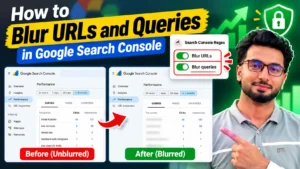
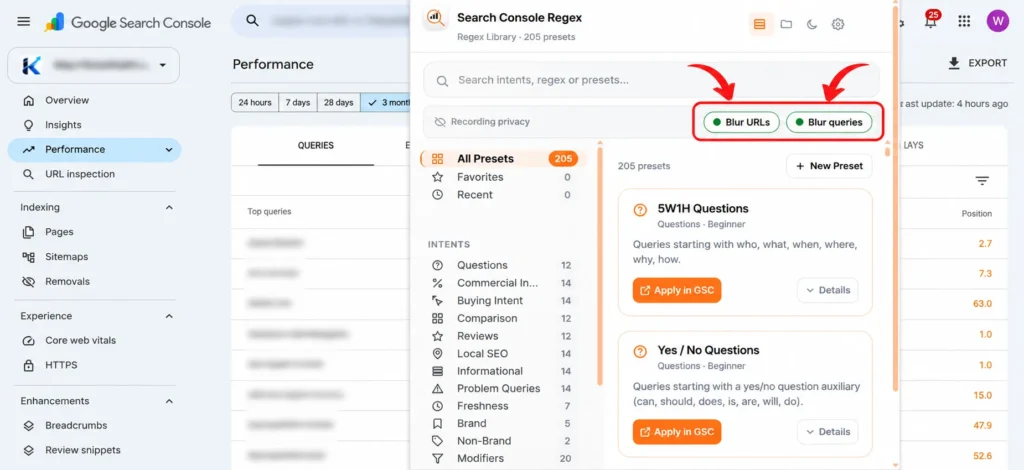
Blur mode for recordings and client calls
Two toggles hide query text and page URLs on screen. Turn them on before a tutorial recording, a screenshot or a client call and you can show the report without showing the data behind it. This has its own full guide: [Article 2 link: How to Blur URLs and Queries in Google Search Console].
How to use regex in Search Console with the extension, step by step
Step 1: Install the extension
Add Search Console Regex from the Chrome Web Store: https://chromewebstore.google.com/detail/search-console-regex/gkhbacegfheohpekmjabdoacdjklkedn
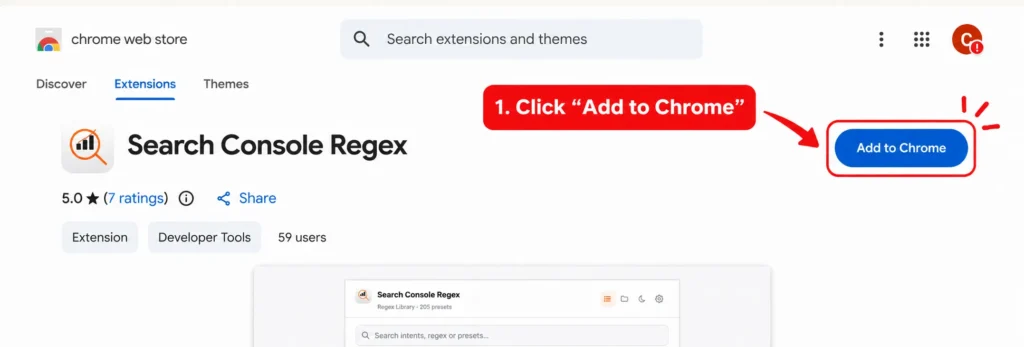
It is free, needs no account and asks for no sign in.
Step 2: Open the Performance report
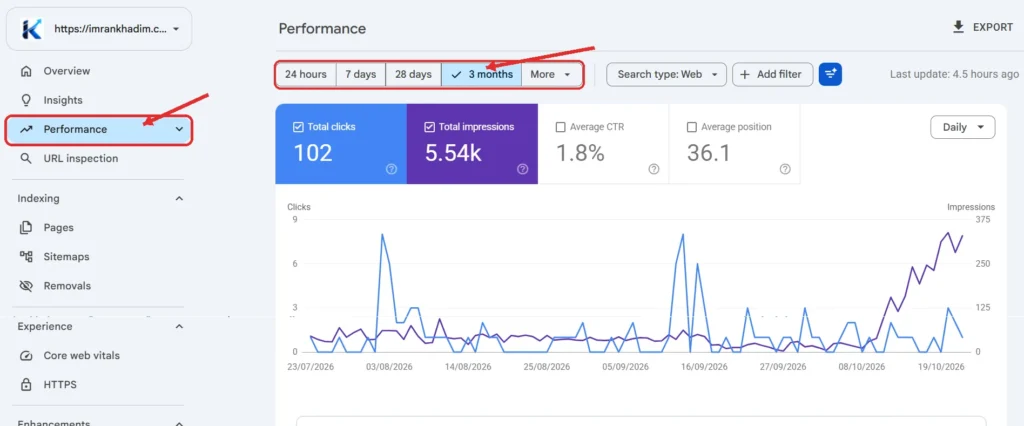
In Google Search Console, open Performance, then Search results. Set the date range you want to analyse first. The extension works on the report you have open.
Step 3: Open the extension
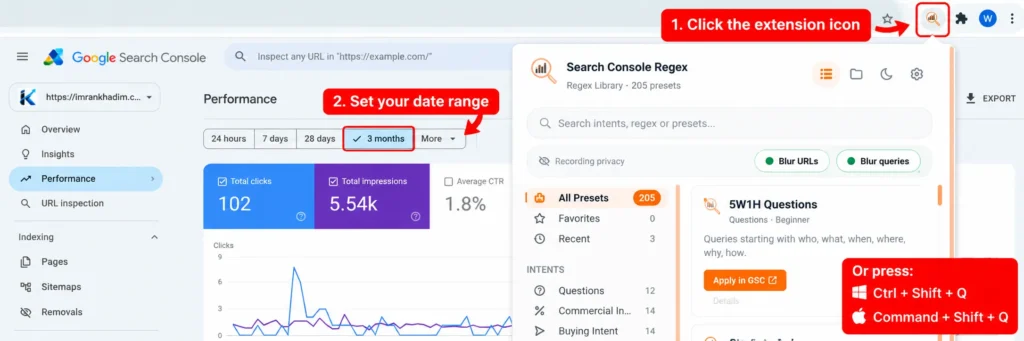
Click the extension icon, or press Ctrl+Shift+Q on Windows and Command+Shift+Q on a Mac.
Step 4: Pick a category and click a preset
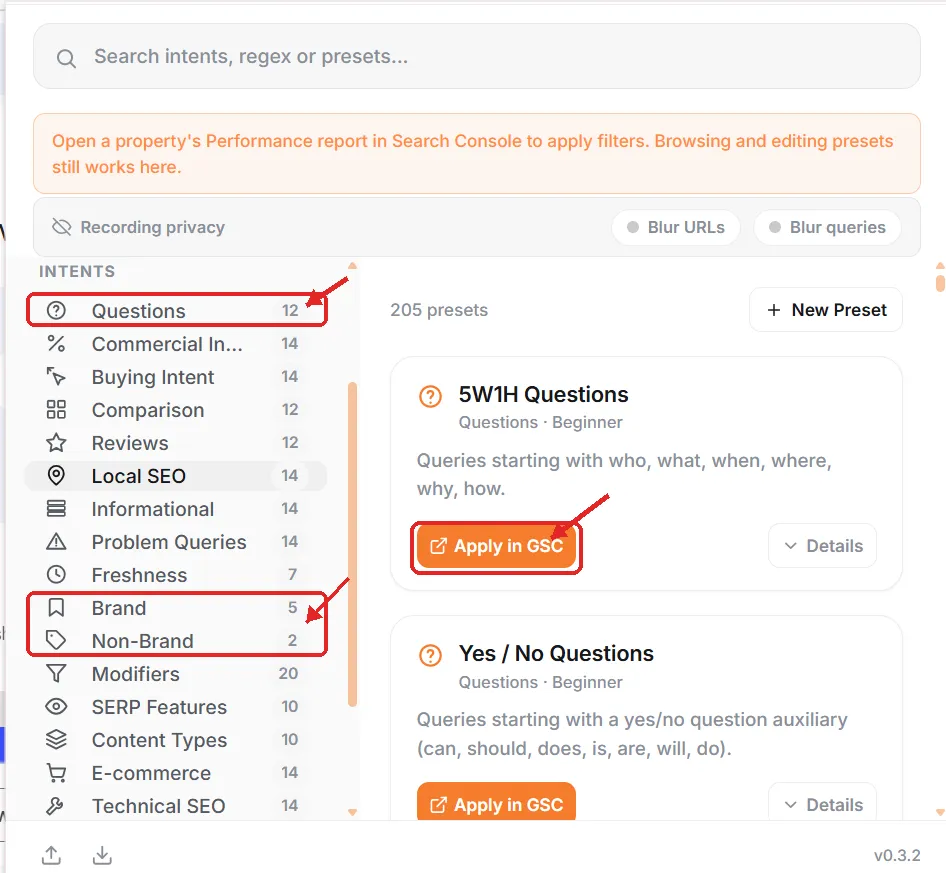
Start with Questions if you are hunting content ideas, or Brand and Non Brand if you are reporting. The filter is applied in the report at once. Chrome may show a “started debugging this browser” bar for about one second. That bar is expected. Search Console only accepts a real mouse click on its Custom (regex) option, so the extension sends that single click and detaches right away.
Step 5: Save the patterns you repeat
Open the preset, save it as a favorite, or create your own pattern and file it in a collection named after the client or the task. Next month the same reporting run takes clicks, not typing.
Step 6: Turn on blur before you share anything
If the next step is a screenshot, a Loom video or a client call, switch on Blur URLs and Blur queries first. The keyboard shortcut for URL blur is Ctrl+Shift+B, Command+Shift+B on a Mac. Check the limits in the next section so you know what blur does not cover.
What blur mode covers, and what it does not
Blur mode hides query text in the Performance report and page URLs and links shown on the page. It works inside the browser tab only, and it changes nothing in the data itself.
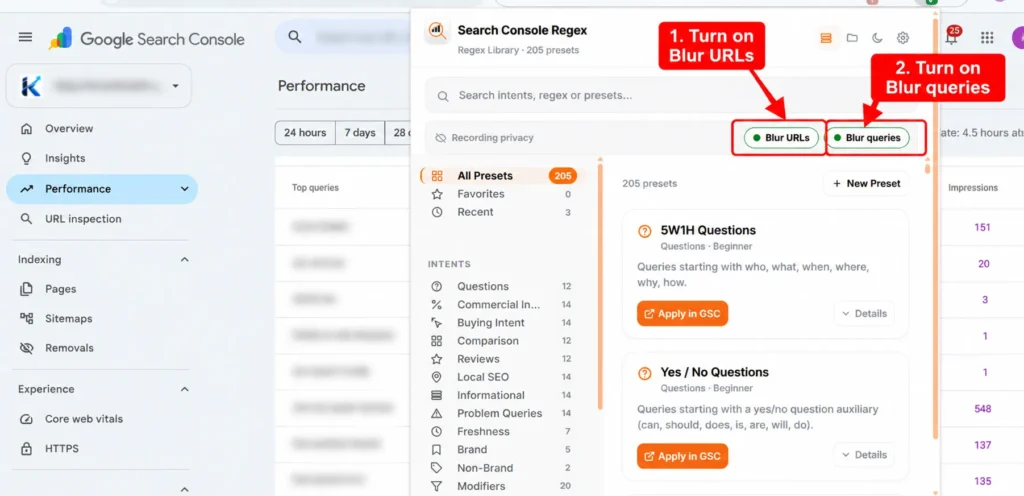
It does not cover:
- Tooltips that appear when you hover over the charts.
- Files you export, such as CSV, Google Sheets or Excel downloads.
- The address bar of your browser.
- Anything you recorded or shared before blur was turned on.
Turn blur on before you start recording, and look at the full screen once before you share it.
Search Console Regex extension vs typing regex by hand vs a regex generator
A regex generator helps you write a pattern. After that you still copy it, open Search Console, and paste it into the filter, every single time.
| Task | By hand | Generator website | Search Console Regex |
|---|---|---|---|
| Applies the filter inside Search Console | No | No | Yes, one click |
| Ready made SEO presets | No | Some | Yes, 18 categories |
| Saves your own patterns | No | Usually no | Yes, favorites and collections |
| Blurs queries and URLs on screen | No | No | Yes |
| Account needed | No | Varies | No |
Privacy: where your data goes
Nowhere. Presets, favorites, collections and settings are stored locally in your browser with chrome.storage. There is no analytics and no tracking in the extension, and it only activates on Search Console pages, search.google.com/search-console/*. The full privacy policy sits on the Search Console Regex product page.
Who gets the most out of this
- SEO specialists who run the same query checks every week.
- Agencies holding many client properties, where one collection per client keeps reporting consistent.
- Content creators and course makers who record Search Console on video.
- Site owners who want the insight from regex filters without learning the syntax first.
Search Console regex questions
Is the Search Console Regex extension free?
Yes. It is free to install and use from the Chrome Web Store.
Why does Chrome show a debugging bar when a filter is applied?
Because Search Console accepts only a trusted mouse click on the Custom (regex) option. The extension uses the debugger permission to send that one click. It attaches for about a second, detaches, and reads or sends nothing.
Can I filter pages with regex, or only queries?
Both. Custom (regex) is available in the Query filter and the Page filter of the Performance report, and the patterns in this guide include page examples.
My regex pattern returns an error. Why?
The usual cause is a feature RE2 does not support, such as a lookahead written as (?!…). Rewrite the pattern without it, or start from a preset in the extension, since every preset is tested against RE2.
Does blur mode change my Search Console data?
No. Blur is a visual layer inside your tab. Your data, your filters and your exports stay exactly as they were. Turn the toggles off and the text is visible again.
Is this extension made by Google?
No. Search Console Regex is an independent tool. It is not affiliated with or endorsed by Google.
Get the extension
Install Search Console Regex from the Chrome Web Store and run your first preset: https://chromewebstore.google.com/detail/search-console-regex/gkhbacegfheohpekmjabdoacdjklkedn
Product page with full feature list and privacy policy: Search Console Regex extension